
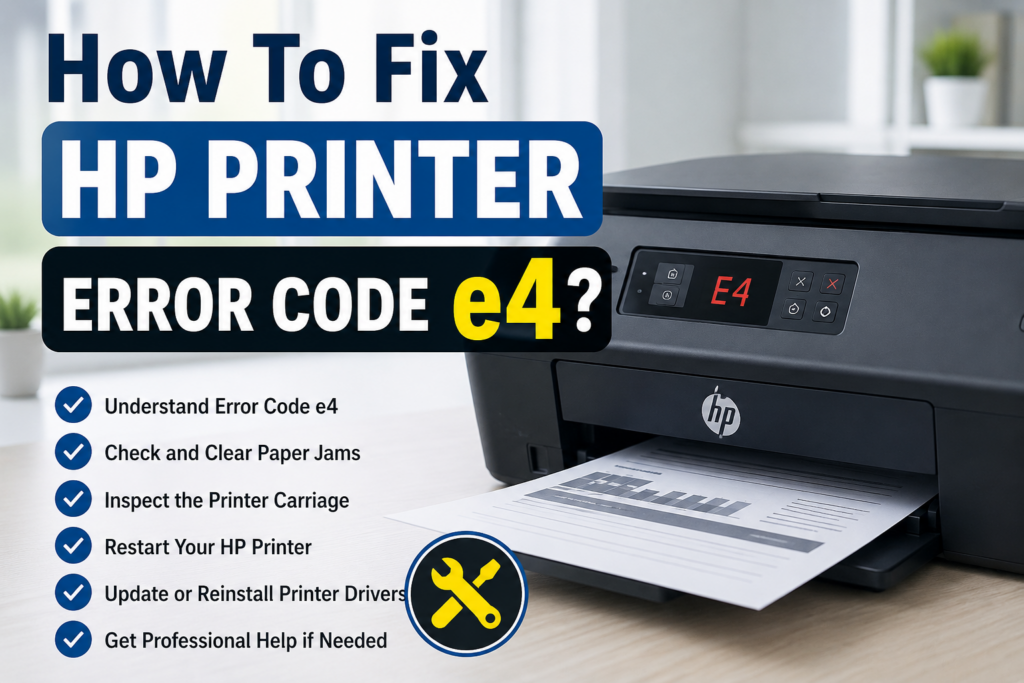
HP printers are known for their reliability and advanced printing features, but like any electronic device, they can sometimes display unexpected errors. HP Printer Error Code E4 is a common issue that users may encounter, especially when the printer detects a paper-related problem. This error usually indicates a paper jam, incorrect paper placement, or an obstruction inside the printer mechanism. Understanding the reason behind this error can help users resolve it quickly without unnecessary repairs. In this guide, we will explain the causes, troubleshooting steps, and preventive measures to fix HP Printer Error Code E4 effectively.
What Does HP Printer Error Code E4 Mean?
HP Printer Error Code E4 generally indicates a paper jam or carriage movement problem inside the printer. When this error appears, the printer may stop printing because it detects that the paper path is blocked or the internal components cannot move correctly.
This error can occur in different HP printer models, including HP DeskJet, HP ENVY, and HP OfficeJet series. While the exact display may vary depending on the model, the solution usually involves checking the paper path, removing stuck paper, and ensuring the printer components can move freely.
Common Causes of HP Printer Error Code E4
Several issues can trigger the E4 error message on an HP printer. Identifying the exact cause makes troubleshooting faster and prevents repeated errors.
1. Paper Jam Inside the Printer
The most common reason for HP Printer Error Code E4 is a paper jam. A small piece of torn paper, a folded sheet, or improperly loaded paper can interrupt the printing process.
Common paper jam locations include:
- Inside the input tray
- Around the ink cartridge carriage
- Near the output tray
- Inside the rear access area
Even a tiny piece of paper can prevent the printer from operating normally.
2. Incorrect Paper Loading
Using incorrect paper placement can also cause an HP printer to display an E4 error. If the paper stack is too large, uneven, or not aligned properly, the printer rollers may fail to pick up the sheets correctly.
Common loading mistakes include:
- Overfilling the paper tray
- Using damaged or curled paper
- Mixing different paper sizes
- Not adjusting the paper guides correctly
3. Blocked Printer Carriage
The printer carriage holds the ink cartridges and moves during printing. If the carriage is blocked by paper scraps, dust, or foreign objects, the printer may stop functioning and show an error message.
4. Dirty Paper Rollers
Paper rollers help move sheets through the printer. Over time, dust and paper particles can reduce their grip, causing paper feeding problems and triggering error codes.
5. Printer Software or Firmware Issues
Although E4 is mostly related to hardware problems, outdated printer firmware or communication errors between the printer and computer can sometimes contribute to printing failures.
How To Fix HP Printer Error Code E4 Step-by-Step
Follow these troubleshooting methods carefully to remove the error and restore normal printing functionality.
Step 1: Turn Off the HP Printer
Before checking inside the printer, turn it off properly.
Follow these steps:
- Press the power button to switch off the printer.
- Disconnect the power cable from the printer.
- Remove the cable from the wall outlet.
- Wait for approximately one minute.
Disconnecting the printer completely allows internal components to reset and reduces the risk of damage while removing paper.
Step 2: Check and Remove Paper Jams
Carefully inspect all possible paper jam areas.
Check the Input Tray
- Remove all paper from the input tray.
- Look for damaged or stuck sheets.
- Remove any visible paper gently.
- Reload fresh paper after checking.
Check the Output Tray
Sometimes paper gets stuck while exiting the printer.
- Pull out any visible paper slowly.
- Avoid using excessive force because it may tear the sheet.
Check Inside the Printer
Open the printer access door and inspect the internal area.
Look for:
- Torn paper pieces
- Foreign objects
- Blocked carriage movement
Remove any obstruction carefully.
Step 3: Check the Ink Cartridge Carriage
The cartridge carriage should move freely from one side to another.
To inspect it:
- Open the printer access door.
- Wait until the carriage stops moving.
- Manually check whether anything blocks its movement.
- Remove visible obstacles if found.
Do not force the carriage because internal components can be damaged.
Step 4: Reload Paper Correctly
Incorrect paper alignment can recreate the error after troubleshooting.
Follow these tips:
- Use recommended paper types.
- Do not exceed the maximum paper limit.
- Align paper edges before loading.
- Adjust paper width guides properly.
- Remove folded or damaged sheets.
Using good-quality paper helps prevent frequent paper feed problems.
Step 5: Clean HP Printer Rollers
Dirty rollers may prevent smooth paper movement.
To clean the rollers:
- Turn off the printer.
- Disconnect the power supply.
- Use a clean, lint-free cloth slightly dampened with water.
- Gently wipe the rollers.
- Allow them to dry before restarting.
Regular cleaning improves paper feeding performance and reduces recurring printer errors.
Step 6: Perform a Printer Reset
A power reset can clear temporary errors stored in the printer system.
Follow these steps:
- Turn off the HP printer.
- Remove the power cable.
- Wait for about 60 seconds.
- Reconnect the cable.
- Turn the printer back on.
After restarting, check whether the HP Printer Error Code E4 has disappeared.
Step 7: Update Printer Firmware
If the error continues after checking for paper problems, updating the printer firmware may help.
Firmware updates can:
- Improve printer performance
- Fix communication issues
- Resolve compatibility problems
- Enhance device stability
Always download updates from official HP support resources to avoid installing incorrect software.
When Should You Contact HP Printer Support?
Most E4 errors can be fixed at home, but professional assistance may be required if the problem continues.
Consider contacting support when:
- The error appears repeatedly after removing jams.
- The printer carriage does not move.
- Internal parts make unusual sounds.
- Paper jams occur frequently without visible causes.
- The printer does not turn on properly.
A trained technician can inspect internal components and identify mechanical problems that cannot be solved through basic troubleshooting.
Tips To Prevent HP Printer Error Code E4
Preventive maintenance can reduce the chances of printer errors and improve device performance.
Use Proper Paper Quality
Low-quality paper can create dust and increase the risk of jams. Always use suitable paper recommended for your HP printer model.
Keep the Printer Clean
Regular cleaning prevents dust buildup around rollers and internal parts.
Avoid Overloading the Paper Tray
Adding too many sheets can cause feeding issues. Keep paper levels within the recommended limit.
Store Paper Properly
Keep unused paper in a dry place. Moisture can cause sheets to stick together and create feeding problems.
Perform Regular Maintenance
Periodic checks of rollers, cartridges, and printer settings help maintain smooth operation.
Frequently Asked Questions About HP Printer Error Code E4
Why is my HP printer showing Error Code E4?
HP Printer Error Code E4 usually appears because of a paper jam, blocked carriage, incorrect paper loading, or an obstruction inside the printer.
Can I fix HP Printer Error Code E4 myself?
Yes, most users can fix this error by removing paper jams, checking internal parts, cleaning rollers, and restarting the printer.
Does E4 error mean my HP printer is damaged?
No, the E4 error does not always indicate serious damage. In most cases, it is caused by paper-related issues that can be corrected easily.
How often should I clean my HP printer rollers?
Cleaning printer rollers every few months or whenever paper feeding problems occur can help maintain reliable printing performance.
Conclusion
HP Printer Error Code E4 is usually caused by paper jams, incorrect paper handling, blocked carriage movement, or dirty rollers. By carefully inspecting the printer, removing obstructions, loading paper correctly, and performing a proper reset, most users can resolve this issue without professional help. Regular maintenance and proper printer usage can also prevent similar errors in the future. If the error continues despite troubleshooting, contacting HP support or a qualified printer technician is the best option to protect the device and restore efficient printing performance.