
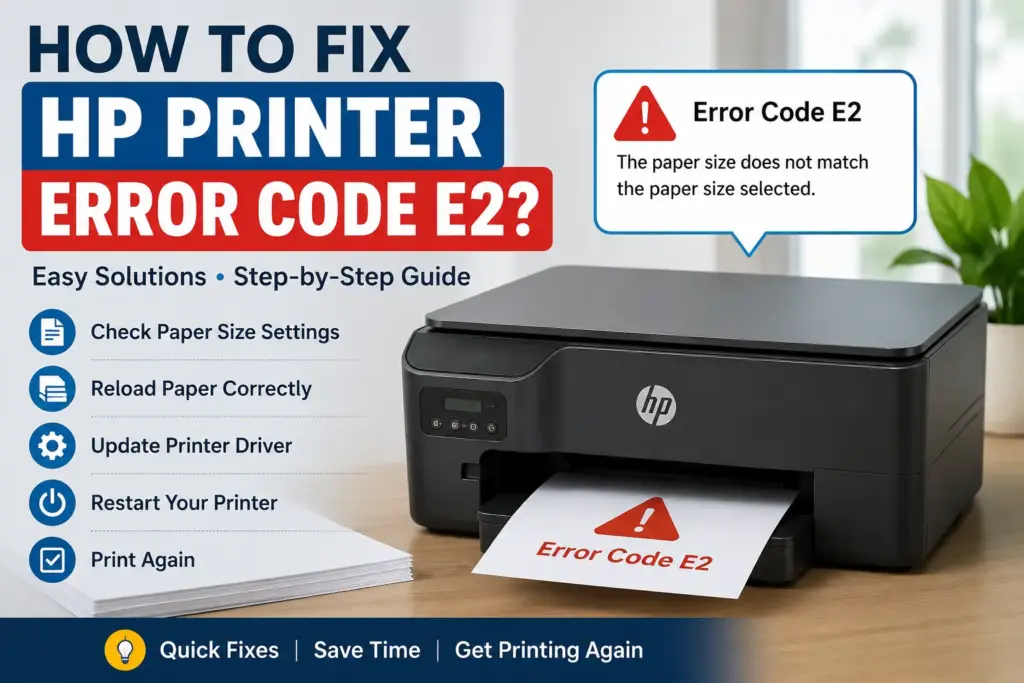
HP printers are known for their reliability, but like any electronic device, they can occasionally display error messages that interrupt printing. HP Printer Error Code E2 is one of the most common errors encountered by users, especially when setting up a new printer or printing important documents. This error usually indicates a mismatch between the paper size selected in the print settings and the paper loaded in the printer tray. Although it may seem frustrating, the issue is generally simple to resolve with a few troubleshooting steps. This guide explains the causes, solutions, and preventive measures to help you fix the problem efficiently and keep your HP printer working smoothly.
Understanding HP Printer Error Code E2
HP Printer Error Code E2 is a paper size mismatch error that occurs when the printer detects a difference between the paper loaded in the input tray and the paper size selected in the print settings. The printer automatically pauses the printing process to prevent incorrect printing or paper wastage.
This error commonly appears on HP DeskJet, InkTank, OfficeJet, and ENVY printer models. In most cases, it does not indicate a hardware failure. Instead, it is related to printer settings, paper alignment, or communication between the computer and the printer.
The good news is that Error Code E2 can usually be resolved without technical assistance. By checking paper settings, reloading paper correctly, updating printer software, and restarting the printer, users can restore normal functionality within minutes. Understanding the root cause is the first step toward resolving the issue effectively.
Common Causes of HP Printer Error Code E2
Several factors can trigger this error. Identifying the exact cause makes troubleshooting much easier.
Incorrect Paper Size Selection
The most common reason is selecting a paper size in the print settings that differs from the paper placed in the printer tray.
Improper Paper Loading
Paper loaded unevenly or beyond the recommended limit can prevent the printer from detecting the correct size.
Misaligned Paper Guides
If the paper width guides are too loose or too tight, the printer may incorrectly identify the paper dimensions.
Printer Driver Issues
Outdated or corrupted printer drivers can send incorrect print instructions, resulting in Error E2.
Temporary Printer Glitches
Sometimes a minor firmware or communication error between the printer and computer can trigger the message even when everything appears correct.
Unsupported Paper Type
Using paper that does not meet HP’s recommended specifications may also lead to paper detection errors.
How To Fix HP Printer Error Code E2
Follow these troubleshooting methods one by one.
Check the Paper Size Settings
Open the document you want to print.
- Click Print.
- Open Printer Properties or Preferences.
- Verify the selected paper size.
- Ensure it matches the paper loaded in the printer.
- Save the settings and print again.
This simple adjustment resolves the issue in many cases.
Reload the Paper Properly
Remove all paper from the input tray.
- Check for folded or damaged sheets.
- Use clean, flat paper.
- Align the paper stack evenly.
- Avoid overloading the tray.
- Slide the paper guides gently against the paper.
Reload the paper and try printing again.
Restart the Printer
Temporary software glitches can often be cleared with a restart.
Steps:
- Turn off the printer.
- Unplug the power cable.
- Wait for about 60 seconds.
- Reconnect the power cable.
- Turn the printer back on.
Print a test page to check whether the error has disappeared.
Update the Printer Driver
An outdated printer driver may cause incorrect communication between the computer and printer.
To update the driver:
- Open Device Manager.
- Locate your HP printer.
- Select Update Driver.
- Install the latest available version.
Alternatively, download the latest driver from HP’s official support website.
Check Printer Firmware
Firmware updates improve printer stability and resolve known software issues.
Install any available firmware updates before printing again.
Cancel Stuck Print Jobs
Sometimes an old print job with incorrect paper settings remains in the queue.
- Open the print queue.
- Cancel all pending jobs.
- Restart the printer.
- Send the print job again.
Perform a Printer Reset
If the error continues:
- Turn off the printer.
- Disconnect all cables.
- Wait for one minute.
- Reconnect the cables.
- Restart the printer.
A reset refreshes printer memory and often clears temporary errors.
Additional Troubleshooting Tips
If the above methods do not solve the problem, consider these additional checks:
- Print directly from another application.
- Try another USB cable if using a wired connection.
- Restart your computer before printing.
- Ensure the printer is set as the default printer.
- Verify that the correct printer model is selected.
- Remove any paper debris from the input tray.
- Clean the paper rollers if paper feeding appears inconsistent.
- Test printing from another device to determine whether the issue originates from the printer or computer.
- Check for Windows or macOS updates that may affect printer compatibility.
- Disable and re-enable the printer from system settings if communication problems persist.
These simple troubleshooting steps often eliminate software-related problems that standard resets cannot fix.
How To Prevent HP Printer Error Code E2
Preventing Error Code E2 is easier than fixing it repeatedly.
Follow these best practices:
- Always verify paper size before printing.
- Load paper according to HP’s recommendations.
- Keep paper guides properly adjusted.
- Update printer drivers regularly.
- Install firmware updates whenever available.
- Store paper in a dry environment to prevent curling.
- Avoid mixing different paper sizes in one tray.
- Clean the printer periodically.
- Remove completed print jobs from the queue.
- Perform regular maintenance checks.
Consistent maintenance not only reduces Error Code E2 but also improves overall printer performance and extends its service life.
When Should You Contact HP Support?
If the error persists after completing all troubleshooting steps, professional assistance may be necessary. Continuous Error Code E2 messages despite correct paper settings may indicate a sensor malfunction, firmware corruption, or an internal hardware issue. Contact HP Support if the printer repeatedly displays the error, fails to detect paper correctly, or experiences multiple paper-related issues. Before reaching out, note your printer model, firmware version, and the troubleshooting steps already performed to help speed up the support process.
Conclusion
HP Printer Error Code E2 is typically caused by a mismatch between the selected paper size and the paper loaded into the printer. Fortunately, it is one of the easiest printer errors to resolve through proper paper loading, accurate print settings, driver updates, and basic troubleshooting. Regular printer maintenance and keeping software up to date can significantly reduce the chances of encountering this error in the future. By following the methods outlined in this guide, users can restore normal printing quickly and minimize interruptions, ensuring consistent performance whether printing documents, assignments, business reports, or everyday paperwork.